


Table of Contents
Many gamers using modest PCs often struggle with performance limitations caused by older or less powerful hardware, leading to low FPS, stuttering, and inconsistent frame rates in modern games.
To address these challenges, specialized software solutions have emerged that promise to optimize system performance, prioritize gaming processes, and extract maximum hardware potential.
One of the most widely recognized tools in this category is Razer Cortex, which we will explore in depth in this review, analyzing how it impacts FPS stability and the overall gaming experience.
What is Razer Cortex?
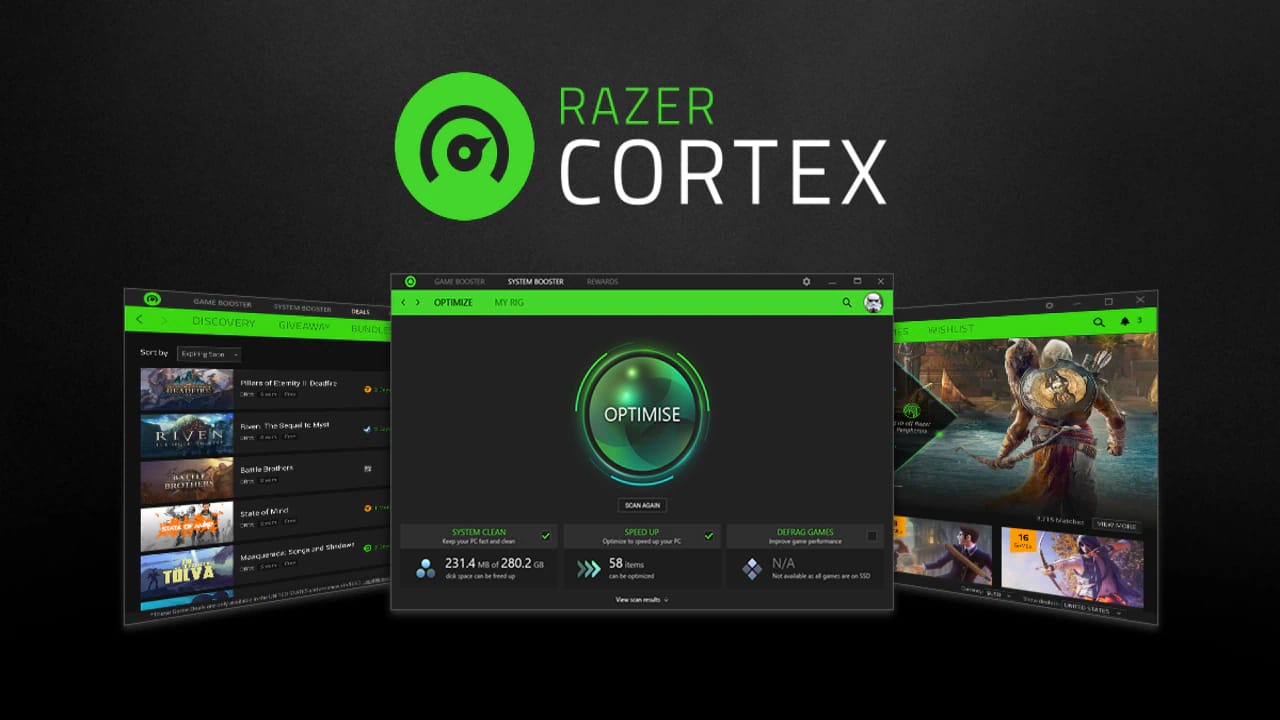
Razer Cortex is a free PC software developed by Razer aimed at optimizing system performance during gaming. Its main feature is Game Booster, which manages Windows resources to reduce the impact of background processes while a game is running.
Unlike many “snake oil” optimization tools, Cortex doesn’t make false claims about increasing hardware clocks; instead, it focuses on efficiency and resource overhead reduction.
In practice, Razer Cortex works by suspending non-essential applications and services, freeing up RAM and prioritizing CPU usage for the active game.
It does not increase hardware capacity or perform CPU/GPU overclocking—any performance gain comes from better system resource allocation and reducing the competition for the CPU’s processing cycles.
How does Razer Cortex Game Booster work?
Razer Cortex Game Booster acts as a Windows resource optimizer focused on reducing system load. It reorganizes how the CPU, memory, and background processes are utilized during gameplay.
By suspending non-essential Windows processes, it prioritizes the game as the system’s primary activity.
One of its most underrated features is the automatic restoration: once the game is closed, the program restores all settings to their original state, ensuring your PC returns to its normal multi-tasking configuration.
Test Environment and Methodology
Detailed information regarding the hardware used in these benchmarks—including CPU, GPU, and cooling specifications—can be found in my Gaming Setup.
The software environment consisted of Windows 11 version 25H2 with NVIDIA driver version 591.74. To ensure data accuracy, each benchmark was run twice—with Razer Cortex disabled and enabled—to calculate an average and reduce natural variance.
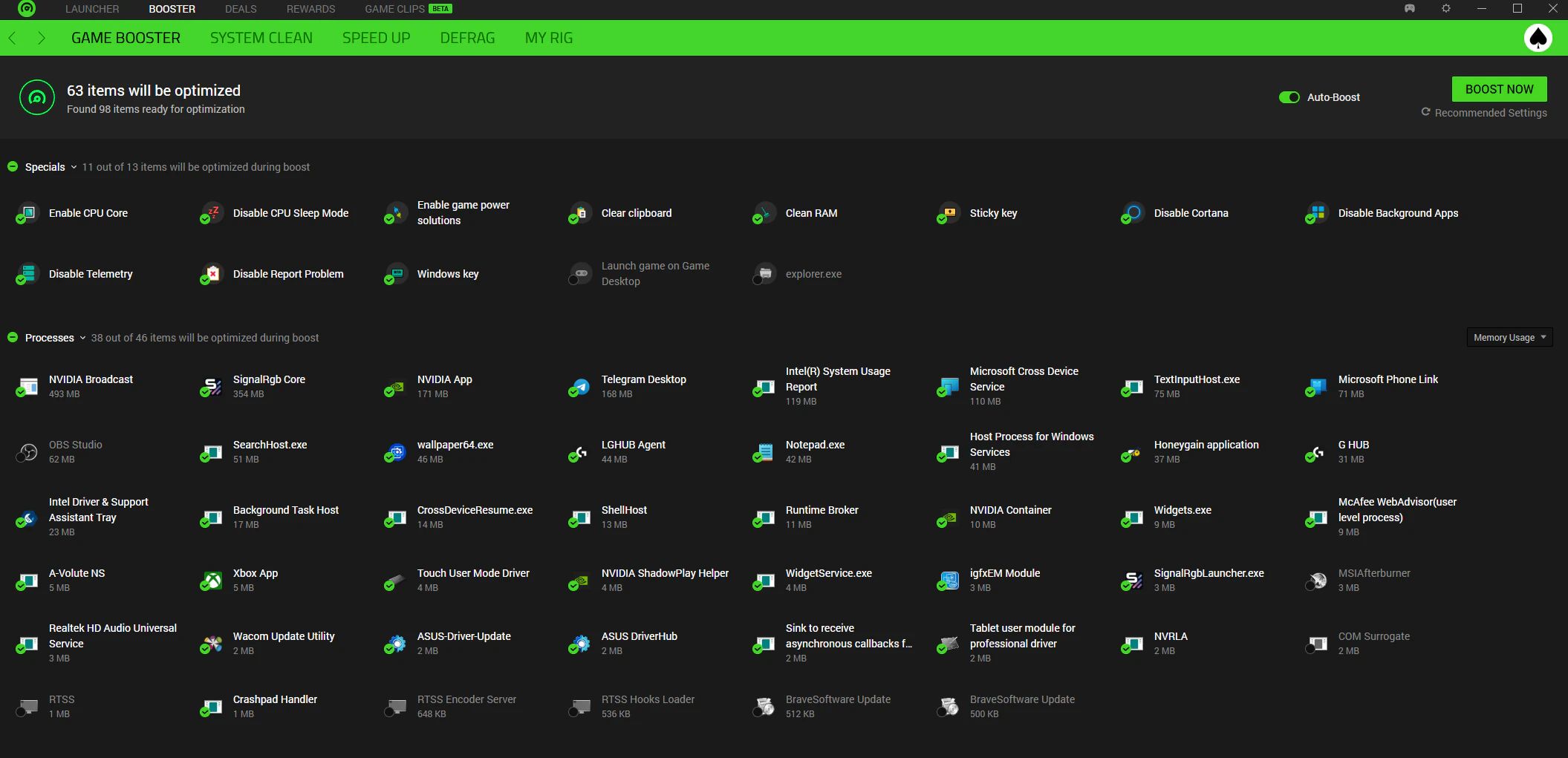
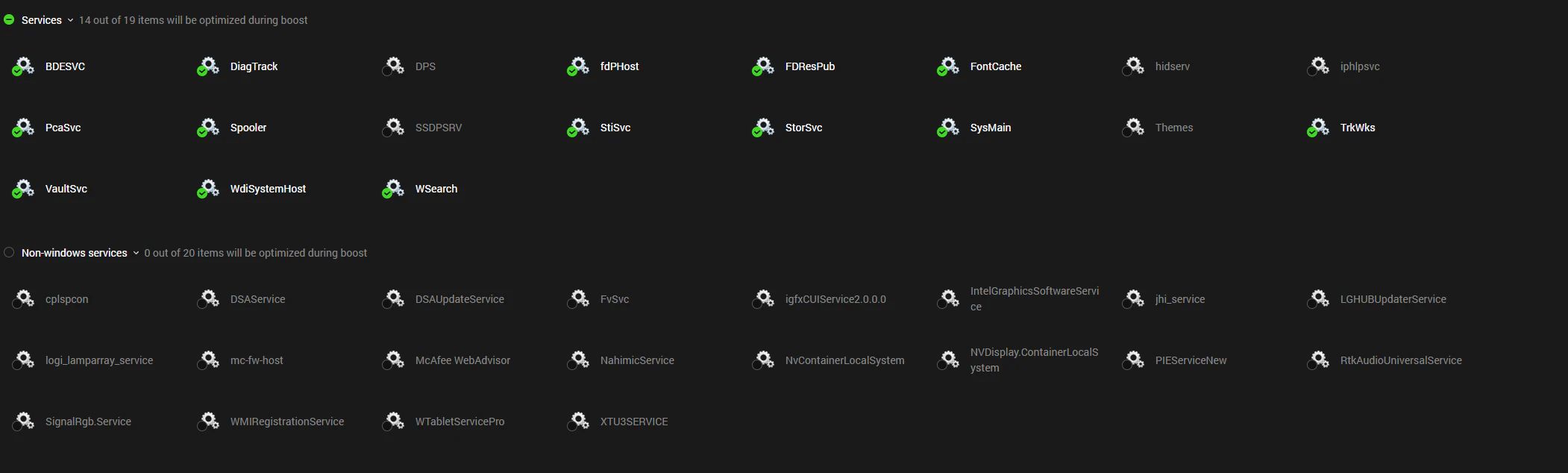
Below are the images showing the options I enabled/disabled in Razer Cortex. I kept almost everything on automatic settings to test how the software performs for the average user who doesn’t want to tinker with manual service management.
Games Selected for FPS Testing
Counter-Strike 2 (CS2): A CPU-bound title where every millisecond of input lag matters. We tested if Cortex could stabilize the frametime consistency in high-FPS scenarios.
Grand Theft Auto V: A classic open-world benchmark that tests both CPU draw distance and GPU rendering efficiency.
Shadow of the Tomb Raider: One of the most consistent benchmarks for identifying CPU bottlenecks through its detailed 1% Low reports.
Forza Horizon 4: A GPU-bound game that tests if system optimization can help with asset streaming and high-speed texture loading.
Marvel’s Guardians of the Galaxy: A modern, visually dense AAA title used to evaluate performance gains in resource-heavy environments.
Benchmark Results Chart
Performance Interpretation
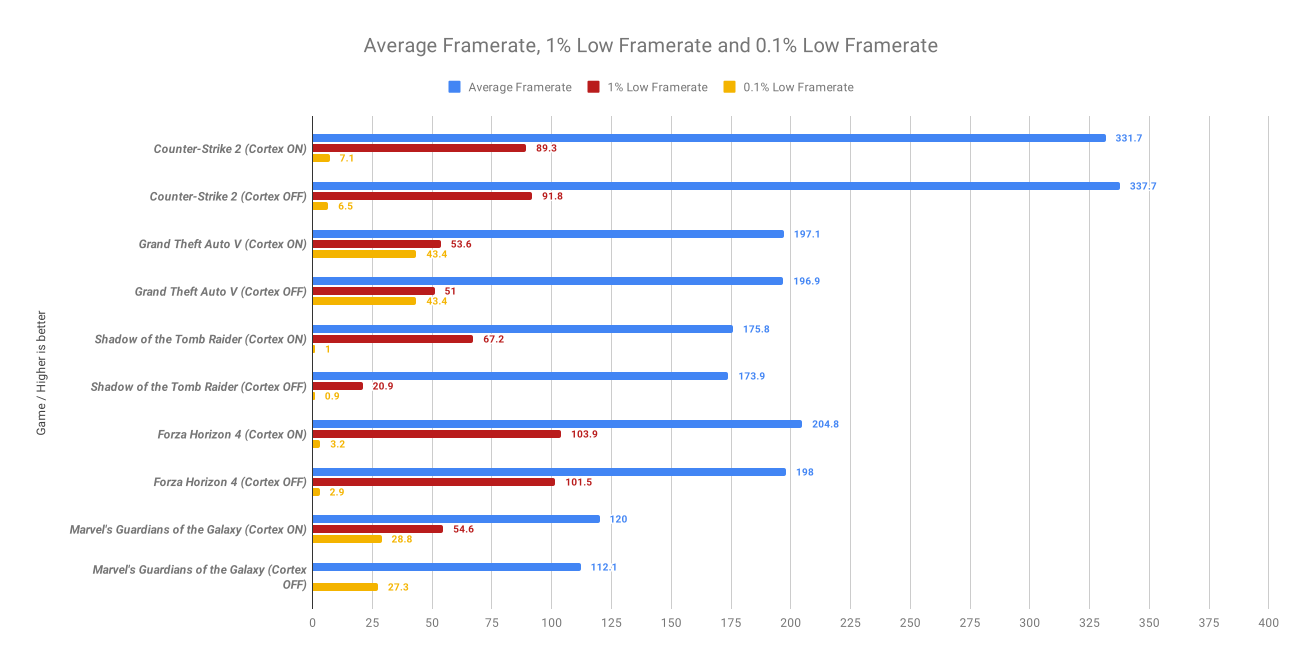
Average Framerate indicates general smoothness. However, 1% Low and 0.1% Low are the true stability metrics; they represent the average of the slowest frames. High values here mean the game is free from stutters or sudden performance drops during intense action.
Counter-Strike 2
In CS2, Razer Cortex acted as a stability stabilizer. While average FPS saw a minor fluctuation, the critical 0.1% Low increased from 6.5 to 7.1 FPS. This indicates less severe micro-delays during high-speed gunfights where CPU spikes usually occur.
Grand Theft Auto V (GTA V)
The impact on GTA V was subtle, with the average FPS remaining at 197. However, the 1% Low rose from 51.0 to 53.6 FPS, reinforcing Cortex’s ability to prioritize consistency over peak performance in open-world environments.
Shadow of the Tomb Raider
This title showed the most drastic improvement. The 1% Low jumped from 20.9 to 67.2 FPS with the software enabled. Cortex effectively eliminated the processing bottlenecks that caused massive stutters, transforming a “choppy” experience into a perfectly fluid one.
Forza Horizon 4
The engine showed a solid raw performance gain. The average FPS rose from 198.0 to 204.8 FPS, while the 1% Low stability also grew from 101.5 to 103.9 FPS. This translates to a more refined sense of speed during high-speed map traversal.
Marvel’s Guardians of the Galaxy
Performance was optimized across the board. Average FPS climbed from 112.1 to 120.0 FPS, and the 0.1% Low improved from 27.3 to 28.8 FPS, showing how clearing background tasks increases both the performance ceiling and floor.
RAM Management
To see how Razer Cortex handles a typical daily workload, I tested it while running several common background applications that often stay open during gaming sessions: Telegram, Logitech G Hub, Wallpaper Engine, and Microsoft Edge. These apps are known for consuming significant system resources even when they are not in active use.
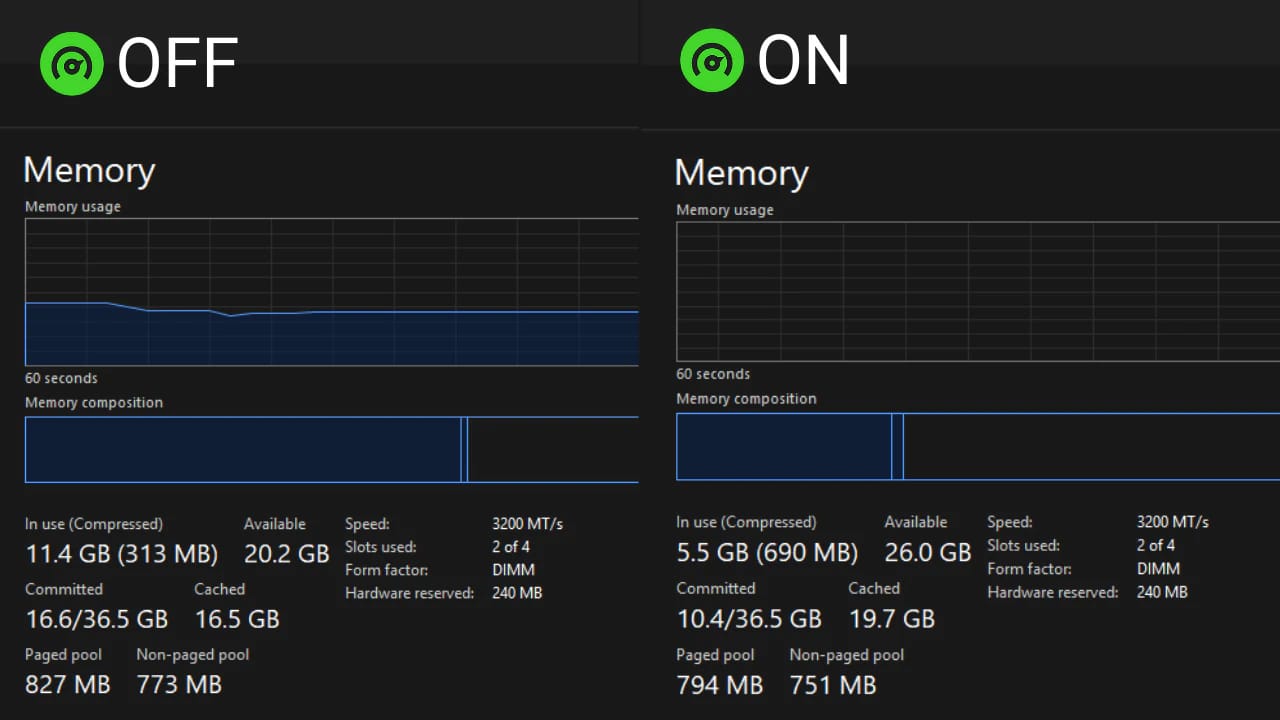
Image: Captured in-software
Upon activating the optimization, Razer Cortex successfully reclaimed over 5GB of RAM, dropping the system usage from 11.4 GB down to 5.5 GB. It is important to clarify a common technical misconception: freeing up RAM does not necessarily increase your maximum FPS. However, the benefit is crucial for stability.
When your system hits its memory limit, Windows is forced to use the “page file” (swapping data to the much slower SSD or HDD), which causes the system to bottleneck and stutter. For gamers with limited RAM (8GB or 16GB), this aggressive management is essential to prevent performance drops and ensure the system doesn’t “choke” during intense gameplay.
Razer Cortex vs. Windows Game Mode
A common question is whether Razer Cortex is redundant given that Windows 11 Game Mode exists. While Windows Game Mode prevents Windows Update from performing driver installations and sending restart notifications, it is relatively conservative in its resource management.
Razer Cortex is much more aggressive, actually killing non-essential processes and cleaning RAM cache, which Game Mode rarely does. For users with low-end hardware, Cortex provides a deeper level of optimization.
Pros and Cons
Pros
- Drastic improvement in 1% Lows (Stability)
- Free and easy-to-use one-click optimization
- Automatic restoration of services after gaming
Cons
- Negligible impact on high-end PCs
- Slight increase in startup time if enabled
- Does not “fix” outdated hardware limitations
Final Verdict
Analysis reveals that Razer Cortex is not a magic solution for boosting maximum FPS, but it is an excellent stability optimizer. It shines by clearing the path for your hardware, ensuring that every available CPU cycle and RAM byte is focused on the game.
On systems where CPU and RAM are constantly near their limits (modest hardware), Cortex can be the difference between a stuttering mess and a smooth gaming experience.
As our tests proved, the biggest gain isn’t in running faster—it’s in running more consistently. If you value frametime stability over raw numbers, Razer Cortex is definitely worth the install.
Official Download and Installation
If you wish to replicate these tests or optimize your own system based on our findings, Razer Cortex is available as a free utility. You can access the official installer and detailed documentation directly through Razer’s official portal:
Access the Official Razer Cortex Website
